
How to Reset a WiFi Router the Right Way
Part of: Electrical safety
- Difficulty
- Easy
- Time
- 10 to 30 minutes
- Tools
- Paper clip, phone or laptop, router login details from the label, pen and paper
- Call a pro if
- The internet is still down after a reset, the lights show a fault or the problem is outside your home. Call your internet provider.
In this guide
- Chemical safety
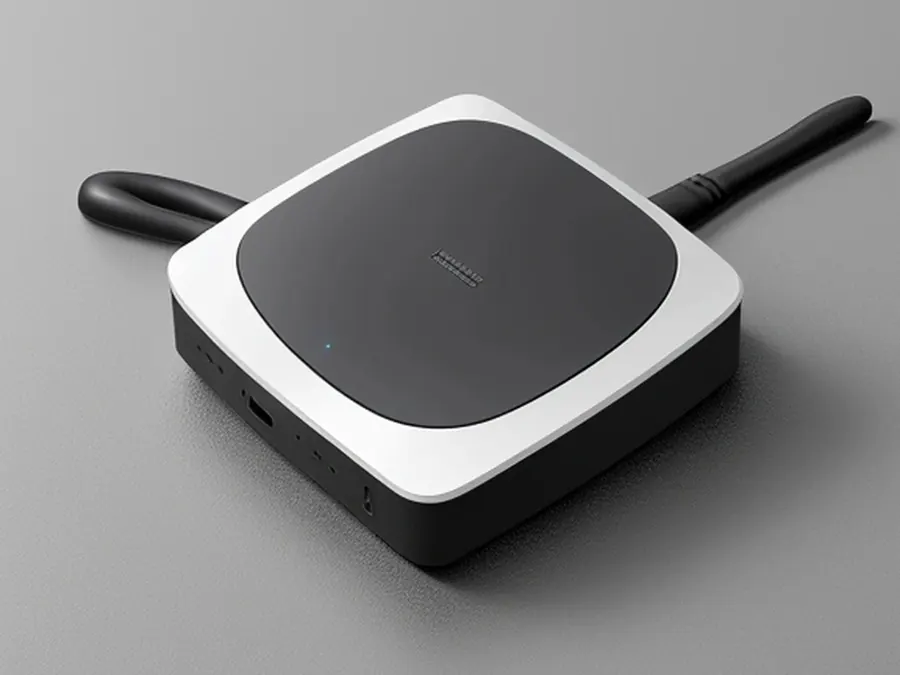
When the internet is slow or down, a router restart fixes many problems. A factory reset is stronger but erases your settings. How to reset a wifi router depends on which reset you mean, since a restart keeps your settings and a factory reset wipes them.
Before you start
There are two kinds of reset, and the difference matters. A restart simply turns the router off and on, and it keeps your settings. A factory reset wipes the settings back to the way it left the maker. Try the gentle one first, and only go further if you must.
1. Check whether the problem is the router
1. Test another device on the same WiFi.
2. Check whether the internet works over a cable.
3. Look at the router lights for warnings.
4. Ask whether others in the area have an outage.
2. Restart the router
1. Unplug the power cable from the router.
2. Wait 30 seconds.
3. Plug it back in.
4. Wait a few minutes for the lights to settle.
3. Restart the modem if you have one
1. Unplug the modem first.
2. Wait 30 seconds, then plug it back in.
3. Wait until it fully connects.
4. Then restart the router.
4. Check the connection
1. Connect a device and try a website.
2. Run a speed test if it works.
3. Note any error messages.
4. If it works, you are done.
5. Write down your settings
1. Note the WiFi name and password.
2. Find the router login on the label.
3. Take a photo of any custom settings.
4. Check that your provider's login details are handy.
6. Do a factory reset only if needed
1. Find the small reset hole on the back of the router.
2. Hold a paper clip in it for 10 to 15 seconds while the router is on.
3. Release when the lights flash.
4. Wait for it to restart.
7. Set it up again
1. Connect to the router's default WiFi or by cable.
2. Open the setup page or app.
3. Choose a new network name and a strong password.
4. Reconnect your devices.
8. Make it more reliable
1. Update the router firmware.
2. Place it in the open, away from walls and metal.
3. Restart it every few months.
4. Keep a record of the login details.
Quick tips
- Label your router login and WiFi name with a sticker inside a drawer, not on the router.
- Take a photo of the back panel before unplugging cables.
- Wait a full five minutes after a restart before you judge the result.
- Change the default admin password after any factory reset.
When to stop and call a pro
Call your internet provider if a restart and a factory reset do not bring the connection back, if the modem shows a red light, or if the problem happens across all devices and cables. The fault may be in the line, the modem or the service. Replace a router that overheats, restarts by itself or is many years old. Do not try to open the case or repair it. If you suspect someone else is using your network, change the WiFi password and the router login after a reset, then check the connected devices list.
Related guides
- How to improve WiFi signal at home
- How to set up a smart plug
- How to set up an indoor security camera
Common mistakes
- Doing a factory reset before a simple restart.
- Not saving settings first.
- Leaving the default password.
- Holding the reset button too briefly.
- Hiding the router in a cabinet.
FAQ
Is restarting the same as resetting?
No. A restart keeps your settings. A factory reset erases them.
How long should I wait after unplugging?
About 30 seconds.
Will a reset speed up my internet?
It can help if the router was stuck, but it will not change your plan.
Where is the reset button?
Usually a small hole on the back marked reset.
More from this topic
- How to Improve WiFi Signal at Home: Learn how to improve WiFi signal at home: move the router, clear obstacles, switch bands and channels and...
- How to Set Up a Guest WiFi Network: Learn how to set up a guest WiFi network: log in to the router, turn on the guest network, choose a strong...
- Three-Way Switch Not Working: How to Find the Problem: Three-way switch not working? Learn how two switches control one light, how to check the bulb, the breaker...
- How to Set Up Internet in a New Apartment: Learn how to set up internet in a new apartment: check what the building supports, compare plans, book the...
- How to Use a Torque Wrench the Right Way: Learn how to use a torque wrench: set the torque, pull smoothly to the click, and store it right so bolts are...
 Electrical BasicsHow to Improve WiFi Signal at HomeLearn how to improve WiFi signal at home: move the router, clear obstacles, switch bands and channels and update settings before you spend money on new gear.
 Electrical BasicsHow to Set Up a Guest WiFi NetworkLearn how to set up a guest WiFi network: log in to the router, turn on the guest network, choose a strong password and keep visitors off your private devices.
 Electrical BasicsThree-Way Switch Not Working: How to Find the ProblemThree-way switch not working? Learn how two switches control one light, how to check the bulb, the breaker and the wiring, and when to call an electrician.
 First HomeHow to Set Up Internet in a New ApartmentLearn how to set up internet in a new apartment: check what the building supports, compare plans, book the install and place the router well.
 Garage and OutdoorsHow to Use a Torque Wrench the Right WayLearn how to use a torque wrench: set the torque, pull smoothly to the click, and store it right so bolts are tight but never stripped.