
Doorbell Not Ringing: What to Check
Part of: Electrical safety
- Difficulty
- Easy to medium
- Time
- 20 to 60 minutes
- Tools
- Screwdriver, multimeter (optional), non-contact voltage tester, replacement batteries, small wire, flashlight
- Call a pro if
- the transformer is in the electrical panel or a junction box you are not comfortable opening, you see burned wires or the system does not work after you replace the parts
In this guide
- Power off first
With a doorbell not ringing, work from the button to the chime to the transformer. When your doorbell is not ringing, the cause is usually one of three parts: the button, the chime or the transformer that powers them. Wireless bells add one more: batteries. Here is a safe order for checking each.
This guide is part of our wider guide to lights, ceiling fans and fixtures.
Know your doorbell type
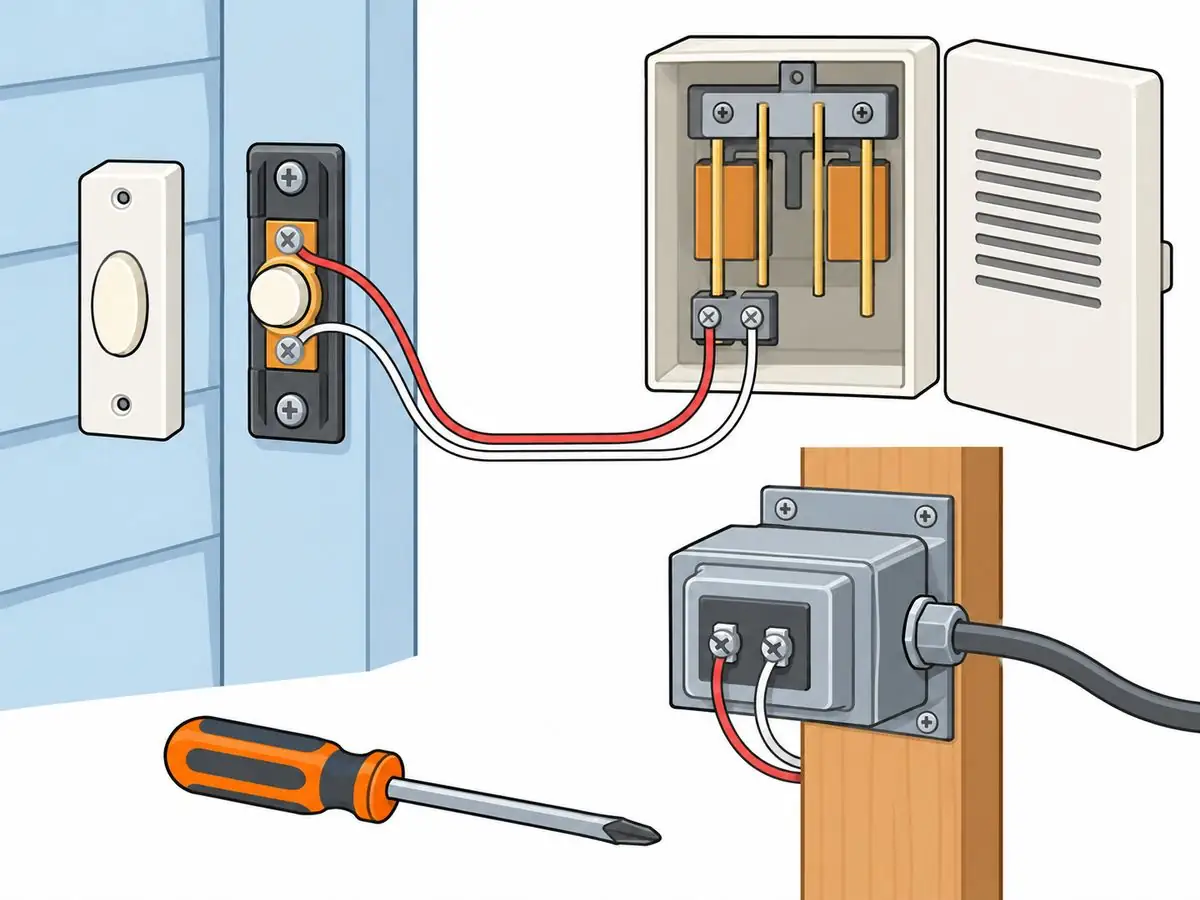
A wired doorbell uses low-voltage wires from a transformer to the button and the chime. A wireless doorbell has a battery-powered button and a plug-in or battery receiver. A video doorbell is wired or battery-powered and rings through an app or a chime.
Wireless doorbell steps
1. Replace the batteries in the button and the receiver.
2. Check the distance. Move the receiver closer to the button and test.
3. Re-pair them. Follow the manual to match the button and receiver, since they sometimes lose pairing.
4. Check for interference. Metal doors and thick walls can weaken the signal.
Wired doorbell steps
1. Press the button and listen. If you hear a faint click at the chime, the chime has power but the part that makes the sound may be stuck.
2. Check the button. Unscrew it from the wall. With care, touch the two wires together. If the chime rings, the button is bad. Replace it.
3. Clean the contacts. Corrosion can block the signal. Scrub gently with fine sandpaper.
4. Check the chime. Remove the cover and look for dust or a stuck plunger. Clean with a dry brush.
5. Check the transformer. It is a small box that lowers house voltage, often near the panel, in a basement or on a junction box. Turn off the breaker and take care. If you have a multimeter, set it to AC volts and test the low-voltage terminals. The voltage should match the label, often 16 volts. If the reading is zero, the transformer may be dead.
6. Replace a bad transformer. If the transformer is on a junction box, this involves house wiring. Turn off the breaker, test for power, and if you are not comfortable, hire an electrician.
7. Check the wires. Look for loose or cut wires at the button and chime.
Video doorbells
Check Wi-Fi, charge the battery, check the app settings and make sure the indoor chime is plugged in or connected to the doorbell.
Common causes in order of how often they happen
Dead batteries in a wireless button are the most common cause by far, followed by a worn or corroded button on a wired system. A failed transformer is less common but easy to miss, because the chime and button both look fine. If a wired doorbell worked for years and then stopped suddenly, test the button first because it is cheap and easy to swap. If it stopped after a power surge or a storm, suspect the transformer.
Write down what you tested and what you found. If you end up calling an electrician, those notes will save them time and you money.
Wired doorbell parts at a glance
The transformer steps down house power to a low voltage, often 16 volts. The chime has a plunger or a speaker. The button is a simple switch. The wire from the button to the chime carries low voltage. If you have a multimeter, you can check each part in minutes. If you do not, swapping the button is the cheapest first test.
Related guides
- Replace Doorbell Button Safely: Test the Wires First
- Ceiling Fan Remote Not Working: Quick Fixes Before You Replace It
- How to Fix a Wobbly Ceiling Fan
- How to Replace a Ceiling Fan
FAQ
Why does my doorbell buzz but not ring?
A weak transformer or a worn chime.
Can I use any transformer?
Match the voltage and rating on the chime. Check the label.
Is doorbell wiring dangerous?
The low-voltage side is generally safe, but the transformer connects to house power. Turn it off first.
How long do wireless batteries last?
Often a year or more, depending on use.
More from this topic
- Replace Doorbell Button Safely: Test the Wires First: Doorbell button stuck or cracked? Replace doorbell button parts safely, test the low-voltage wires and get...
- How to Replace a Doorbell Transformer: Learn how to test and replace a doorbell transformer. Find it, check the voltage, turn off the power and wire...
- Low Voltage Landscape Lights Not Working: What to Check: Landscape lights not working or dim? Check the transformer, timer, wire connections, bulbs and fixtures on...
- Electrical Problems and Safety: Breakers, Outlets, Lights: Electrical problems and safety: a breaker that will not reset, an outlet that is dead or sparking, a switch...
- How to Connect a Printer to WiFi at Home: Learn how to connect a printer to WiFi: check the network, use the printer menu or app, add it on your...
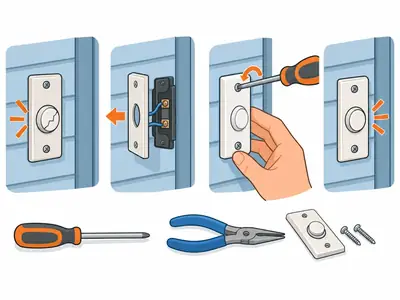 Electrical BasicsReplace Doorbell Button Safely: Test the Wires FirstDoorbell button stuck or cracked? Replace doorbell button parts safely, test the low-voltage wires and get the chime ringing again.
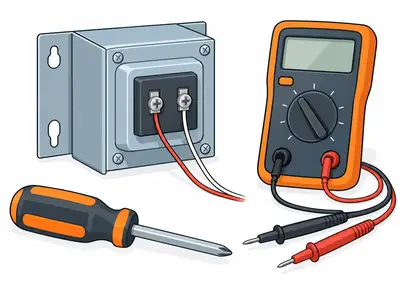 Electrical BasicsHow to Replace a Doorbell TransformerLearn how to test and replace a doorbell transformer. Find it, check the voltage, turn off the power and wire a new one safely. Step by step guide.
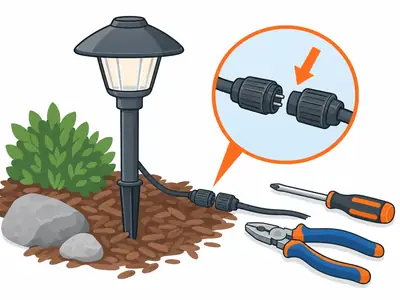 Electrical BasicsLow Voltage Landscape Lights Not Working: What to CheckLandscape lights not working or dim? Check the transformer, timer, wire connections, bulbs and fixtures on low voltage lights. Steps and safety tips included.Electrical BasicsElectrical Problems and Safety: Breakers, Outlets, LightsElectrical problems and safety: a breaker that will not reset, an outlet that is dead or sparking, a switch that buzzes. Steps and safety tips included.
 Electrical BasicsHow to Connect a Printer to WiFi at HomeLearn how to connect a printer to WiFi: check the network, use the printer menu or app, add it on your computer and phone and fix common connection problems.