
How to Connect a Printer to WiFi at Home
Part of: Electrical safety
- Difficulty
- Easy
- Time
- 15 to 30 minutes
- Tools
- Printer, WiFi password, computer or phone, the printer manual, a USB cable if needed
- Call a pro if
- The printer will not connect after a reset, shows hardware errors, smells burning or has damaged parts.
In this guide
- Power off first
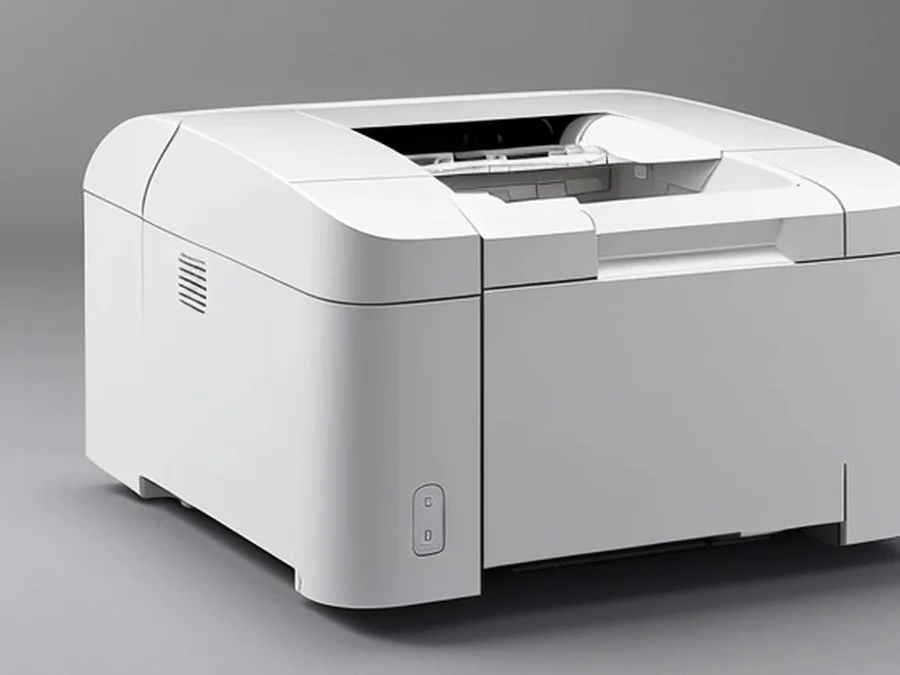
Connecting a printer to WiFi lets everyone in the home print without cables. The steps depend on the printer, but the idea is the same. Here is how to connect a printer to WiFi.
Before you start
Most printer connection problems come from a mismatch, such as a printer on one network and a computer on another. Before you start, confirm that your phone or computer is on the same home WiFi you plan to use for the printer, and that you know the password.
1. Check your network
1. Make sure your WiFi is working.
2. Note the network name and password.
3. Check whether the printer supports 2.4 GHz only.
4. Put the printer near the router for setup.
2. Place and power the printer
1. Put the printer in a spot with good WiFi.
2. Plug it in and turn it on.
3. Load paper and ink or toner.
4. Wait for it to finish starting.
3. Open the printer's WiFi setup
1. Use the printer's control panel menu and find the network or wireless settings.
2. Choose the setup wizard.
3. Pick your network name.
4. Enter the password.
4. Or use the maker's app
1. Download the app named in the manual.
2. Follow the steps to find the printer.
3. Enter your WiFi details.
4. Wait for the connection message.
5. Print a test page
1. Print a network or test page from the printer menu.
2. Check that it shows a connected status.
3. Note the printer's address or name.
4. Keep the page for reference.
6. Add the printer to your computer
1. Open your computer's printer settings.
2. Choose add a printer.
3. Pick your printer from the list.
4. Print a test page.
7. Add the printer to your phone
1. Use the phone's built in print option or the maker's app.
2. Make sure the phone is on the same WiFi.
3. Pick the printer.
4. Print a test page.
8. Fix common problems
1. Restart the printer, the router and the computer.
2. Check the printer is on the same network.
3. Move it closer to the router.
4. Update the printer software.
Quick tips
- Give the printer a clear name so family members can find it.
- Keep the printer on the same WiFi band as your computers.
- Keep a USB cable handy as a backup connection.
- Turn the printer off when you do not use it for long periods.
When to stop and call a pro
If the printer will not connect after a restart and a reset, check that the router has not changed its name or password. If you recently reset the router, repeat the setup. Do not open a printer while it is plugged in. If the printer smokes, smells of burning plastic or has sparks, unplug it and stop using it. A printer that trips the breaker should be replaced. Do not give the printer's setup page or the network password to anyone you do not trust, and avoid leaving the printer open to the internet. Keep spare ink or toner on hand, and use cartridges the maker lists for your model. A printer that is turned off completely may lose its network connection, so check it first after a power cut. If several family members share the printer, set one person to watch the supply levels.
Related guides
Common mistakes
- Using the wrong network.
- Placing the printer far from the router.
- Skipping software updates.
- Clearing a jam while it is plugged in.
- Leaving the default admin password.
FAQ
Why does my printer say offline?
It may have lost the WiFi or changed address. Restart and reconnect.
Can a printer use 5 GHz?
Many only support 2.4 GHz.
Do I need a cable?
Not after setup. Keep one as a backup.
Can I print from my phone?
Yes, on the same network.
More from this topic
- How to Hide TV Cables on the Wall or Behind the Stand: Learn how to hide TV cables safely: plan the route, use a paintable cord cover or an in-wall rated kit, tidy...
- How to Improve WiFi Signal at Home: Learn how to improve WiFi signal at home: move the router, clear obstacles, switch bands and channels and...
- How to Mount a TV on the Wall Safely: Learn how to mount a TV on the wall: find the studs, choose the right bracket, mark and drill the holes,...
- How to Reset a WiFi Router the Right Way: Learn how to reset a WiFi router: restart it first, then do a factory reset only if needed, and set up your...
- How to Set Up a Guest WiFi Network: Learn how to set up a guest WiFi network: log in to the router, turn on the guest network, choose a strong...
 Electrical BasicsHow to Hide TV Cables on the Wall or Behind the StandLearn how to hide TV cables safely: plan the route, use a paintable cord cover or an in-wall rated kit, tidy the bundle and keep every plug easy to reach.
 Electrical BasicsHow to Improve WiFi Signal at HomeLearn how to improve WiFi signal at home: move the router, clear obstacles, switch bands and channels and update settings before you spend money on new gear.
 Electrical BasicsHow to Mount a TV on the Wall SafelyLearn how to mount a TV on the wall: find the studs, choose the right bracket, mark and drill the holes, attach the mount and hang the TV level and secure.
 Electrical BasicsHow to Reset a WiFi Router the Right WayLearn how to reset a WiFi router: restart it first, then do a factory reset only if needed, and set up your network name and password again safely.
 Electrical BasicsHow to Set Up a Guest WiFi NetworkLearn how to set up a guest WiFi network: log in to the router, turn on the guest network, choose a strong password and keep visitors off your private devices.