
How to Set Up a Smart Speaker at Home
Part of: Electrical safety
- Difficulty
- Easy
- Time
- 15 to 30 minutes
- Tools
- Smart speaker, phone with the app, WiFi password, outlet
- Call a pro if
- The speaker will not power on, overheats, or you want to connect it to wired home systems. Contact the maker or an installer.
In this guide
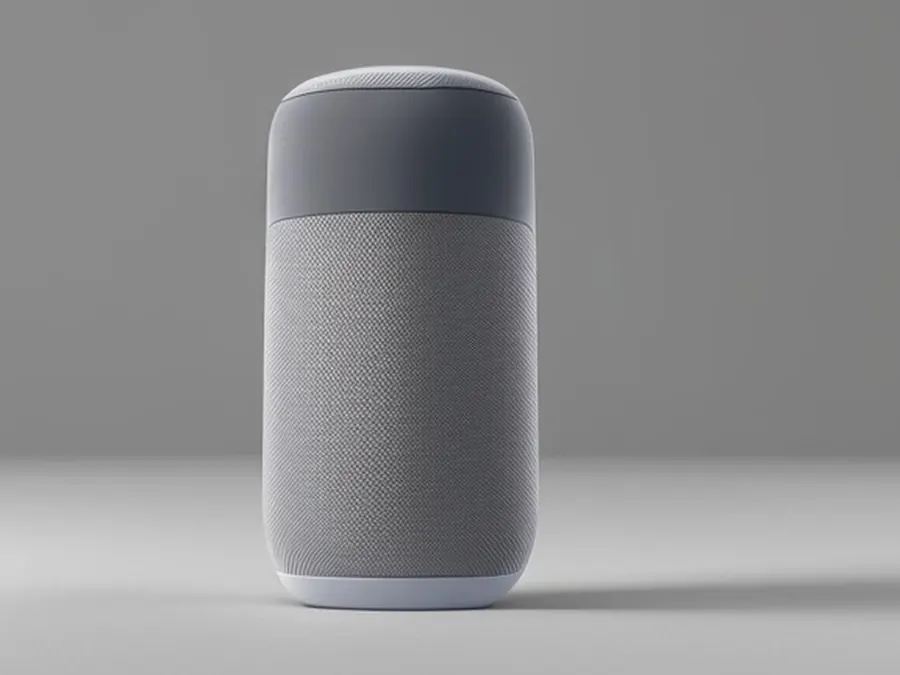
A smart speaker plays music, answers questions and controls other smart devices by voice. Setup is simple. How to set up a smart speaker is as much about privacy as sound, since it is a small computer with a microphone, so where it sits comes first.
Before you start
A smart speaker is a small computer with a microphone, so setup is as much about privacy as sound. Choose where it will sit, decide who in the home will use it and take a few minutes with the settings. That way you start with the options you want.
1. Pick the spot
1. Place it on a stable shelf or table.
2. Keep it away from walls and windows for better sound.
3. Keep it near an outlet and in range of your WiFi.
4. Keep it out of reach of small children.
2. Plug it in
1. Use the power adapter in the box.
2. Plug it into a wall outlet.
3. Wait for the startup light or sound.
4. Do not use a damaged cord.
3. Install the app
1. Download the maker's app on your phone.
2. Create or sign in to an account with a strong password.
3. Turn on two step verification.
4. Allow the permissions it needs.
4. Connect to WiFi
1. Follow the app steps to add the device.
2. Pick your home WiFi.
3. Enter the password.
4. Wait for the confirmation.
5. Choose your settings
1. Set the room name.
2. Choose the voice and the language.
3. Set the wake word.
4. Choose your music services.
6. Review privacy
1. Check what the speaker records and stores.
2. Set auto delete for voice history if offered.
3. Learn where the microphone mute button is.
4. Tell guests the speaker is there.
7. Test voice commands
1. Say the wake word and ask a simple question.
2. Ask it to play music.
3. Adjust the volume.
4. Check that the speaker hears you from across the room.
8. Connect other devices
1. Add a smart plug or a light in the app.
2. Name each device clearly.
3. Test each command.
4. Do not connect locks or garage doors without thinking about security.
Quick tips
- Mute the microphone when you do not want it listening.
- Keep the speaker software updated.
- Change the default name if it has personal details.
- Place it away from the TV to avoid accidental commands.
When to stop and call a pro
If the speaker will not connect, restart your router and move the speaker closer. If it still fails, reset it using the maker's steps. Stop using a speaker that overheats, smells of burning, crackles or has a damaged cord, and unplug it. Think carefully before you connect door locks, garage doors or security systems to voice control, since someone could give a command from outside. Use a PIN where the app offers it. Do not let the speaker control heaters or other devices that could start a fire if turned on by mistake. Review the list of linked services and devices in the app every few months and remove the ones you no longer use. If you sell or give away the speaker, perform a factory reset and remove it from your account first. Keep the original box and manual for warranty questions. Place the speaker on a stable surface so it cannot fall when someone bumps the table.
Related guides
Common mistakes
- Leaving the default password.
- Ignoring privacy settings.
- Linking door locks without a PIN.
- Placing it near water.
- Using a cheap replacement adapter.
FAQ
Does a smart speaker need WiFi?
Yes, for most features.
Is it always listening?
It listens for the wake word. Mute the microphone if you want it off.
Can I use it without an account?
Most need one for setup.
Can I move it to another room?
Yes. Unplug it and set it up again if the WiFi changes.
More from this topic
- How to Set Up a Smart Plug Safely: Learn how to set up a smart plug: check the load, plug it in, connect it to WiFi in the app, name it and set...
- How to Hide TV Cables on the Wall or Behind the Stand: Learn how to hide TV cables safely: plan the route, use a paintable cord cover or an in-wall rated kit, tidy...
- How to Mount a TV on the Wall Safely: Learn how to mount a TV on the wall: find the studs, choose the right bracket, mark and drill the holes,...
- How to Connect a Printer to WiFi at Home: Learn how to connect a printer to WiFi: check the network, use the printer menu or app, add it on your...
- Doorbell Not Ringing: What to Check: Doorbell not ringing? Check the button, the chime, the transformer and the batteries in a wireless set. Safe...
 Electrical BasicsHow to Set Up a Smart Plug SafelyLearn how to set up a smart plug: check the load, plug it in, connect it to WiFi in the app, name it and set schedules without overloading the outlet.
 Electrical BasicsHow to Hide TV Cables on the Wall or Behind the StandLearn how to hide TV cables safely: plan the route, use a paintable cord cover or an in-wall rated kit, tidy the bundle and keep every plug easy to reach.
 Electrical BasicsHow to Mount a TV on the Wall SafelyLearn how to mount a TV on the wall: find the studs, choose the right bracket, mark and drill the holes, attach the mount and hang the TV level and secure.
 Electrical BasicsHow to Connect a Printer to WiFi at HomeLearn how to connect a printer to WiFi: check the network, use the printer menu or app, add it on your computer and phone and fix common connection problems.
 Electrical BasicsDoorbell Not Ringing: What to CheckDoorbell not ringing? Check the button, the chime, the transformer and the batteries in a wireless set. Safe steps, tools and when to call an electrician.