
How to Clean a Laptop Keyboard and Screen Safely
Part of: Tools and everyday fixes
- Difficulty
- Easy
- Time
- 15 to 30 minutes
- Tools
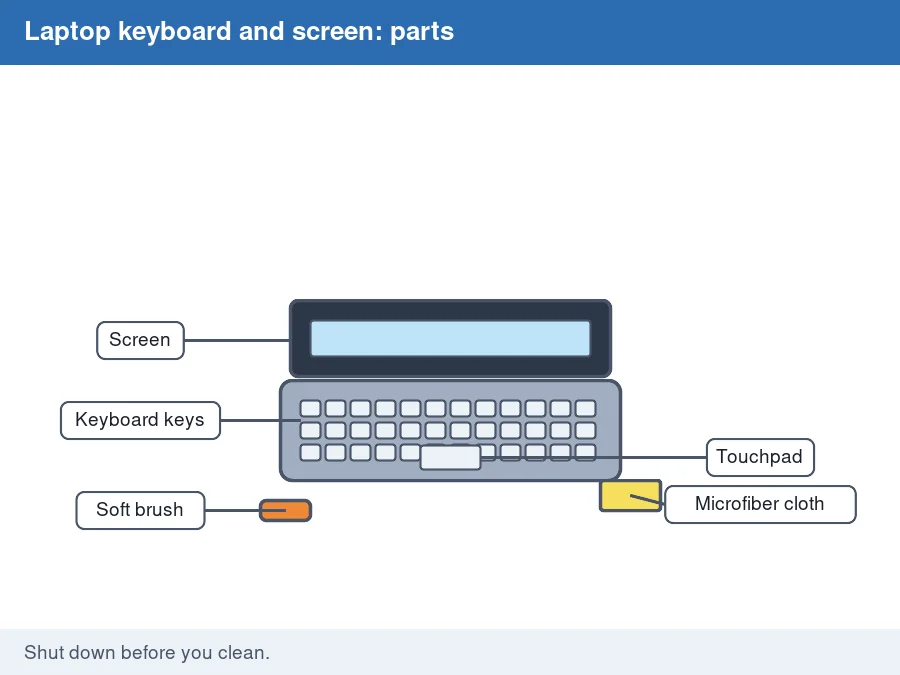
- Microfiber cloths, compressed air, soft brush, cotton swabs, isopropyl alcohol wipes made for electronics, distilled water
- Call a pro if
- Liquid has spilled into the laptop, keys are stuck, the screen is cracked or the machine will not turn on. Contact a repair service.
In this guide
- Power off first
- Chemical safety
Laptops collect crumbs, dust and fingerprints. A gentle clean keeps keys working and the screen clear. Here is how to clean a laptop keyboard and screen without damaging it.
Before you start
Laptop parts are thin and close together, so the safest cleaning is dry first and barely damp second. Never aim to soak anything. Work in good light near a table so a dropped part does not fall on the floor, and keep drinks well away while you work.
1. Shut down and unplug
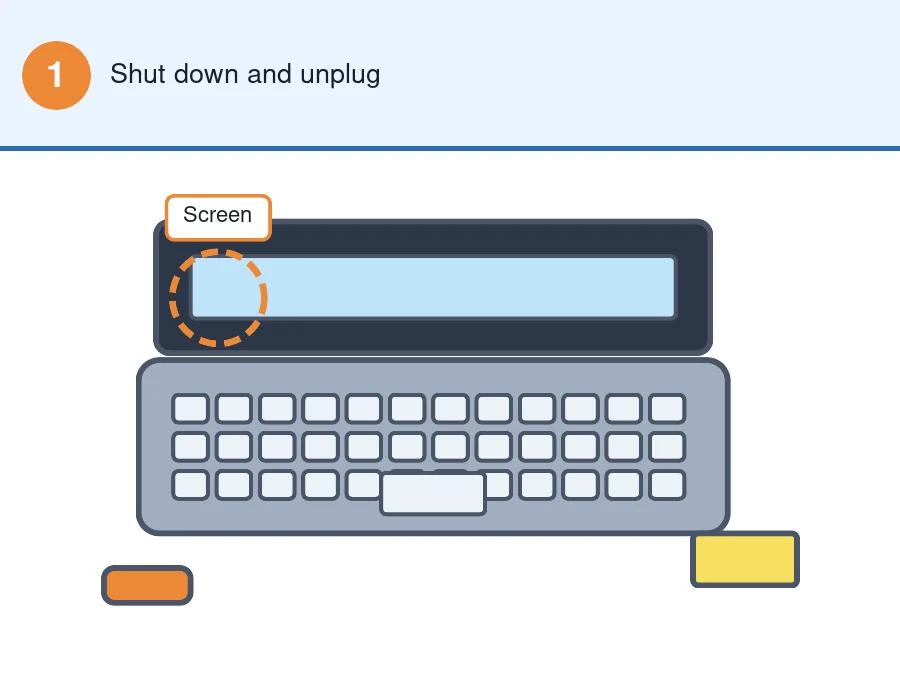
1. Close all your work and shut the laptop down.
2. Unplug the charger and any cables.
3. Remove the battery if it is removable.
4. Let it cool.
2. Turn it upside down
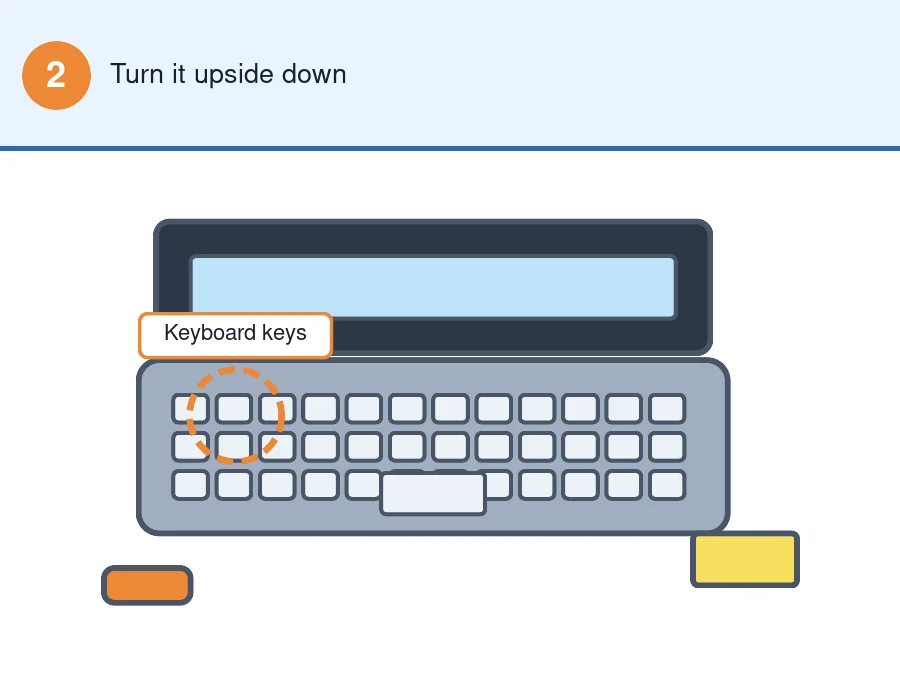
1. Hold the laptop open and tip it gently upside down.
2. Tap the back lightly to loosen crumbs.
3. Do this over a table or a sheet.
4. Do not shake it hard.
3. Brush the keys
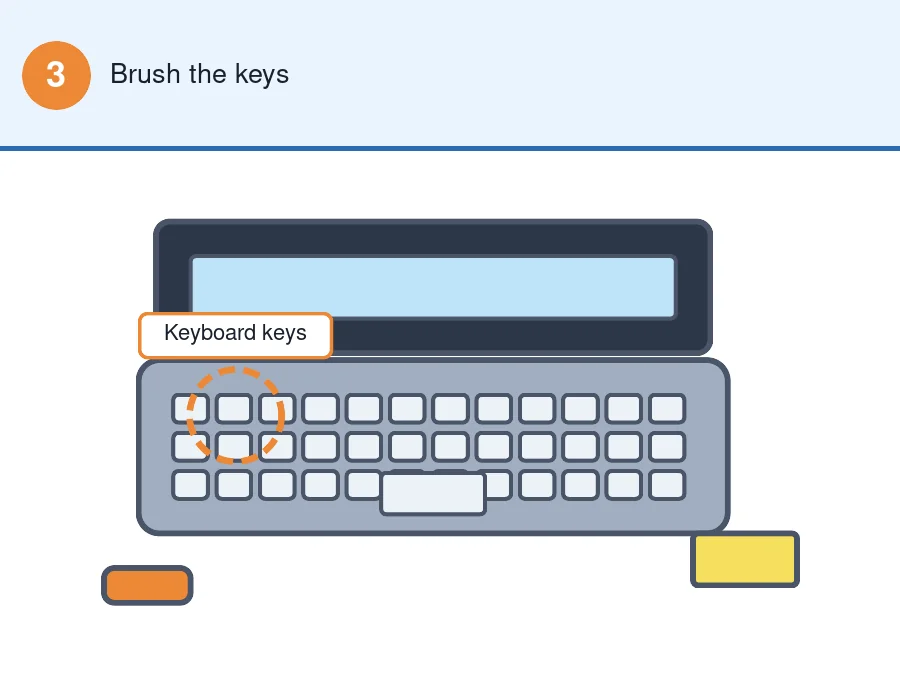
1. Use a soft brush to sweep between the keys.
2. Brush toward the edges.
3. Do not force the brush under keys.
4. Wipe up what falls out.
4. Use compressed air
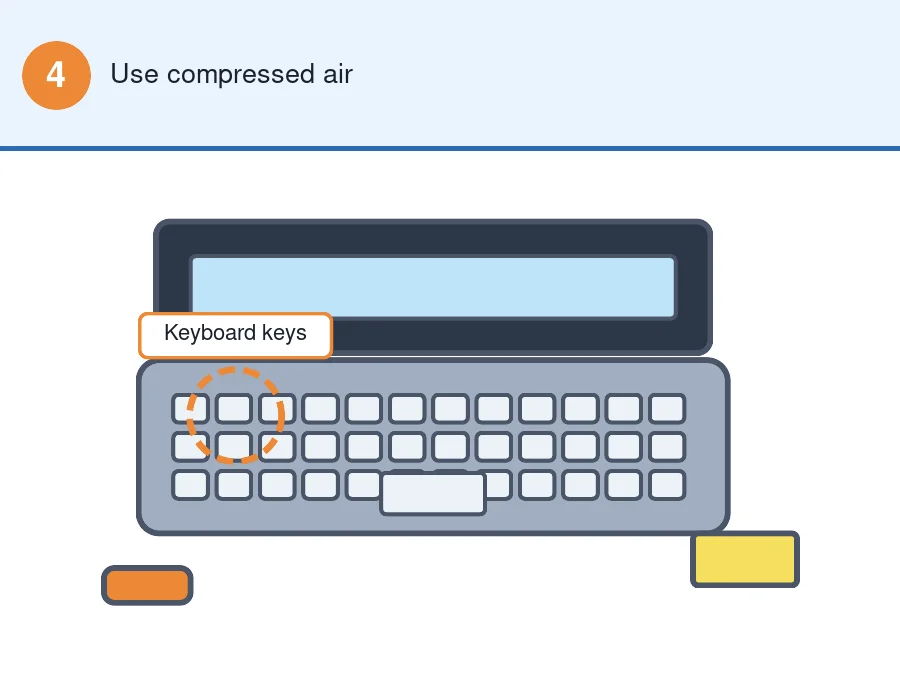
1. Hold the can upright.
2. Spray short bursts between keys at a slight angle.
3. Keep it a few inches away.
4. Do not hold the can too long in one spot.
5. Wipe the keys
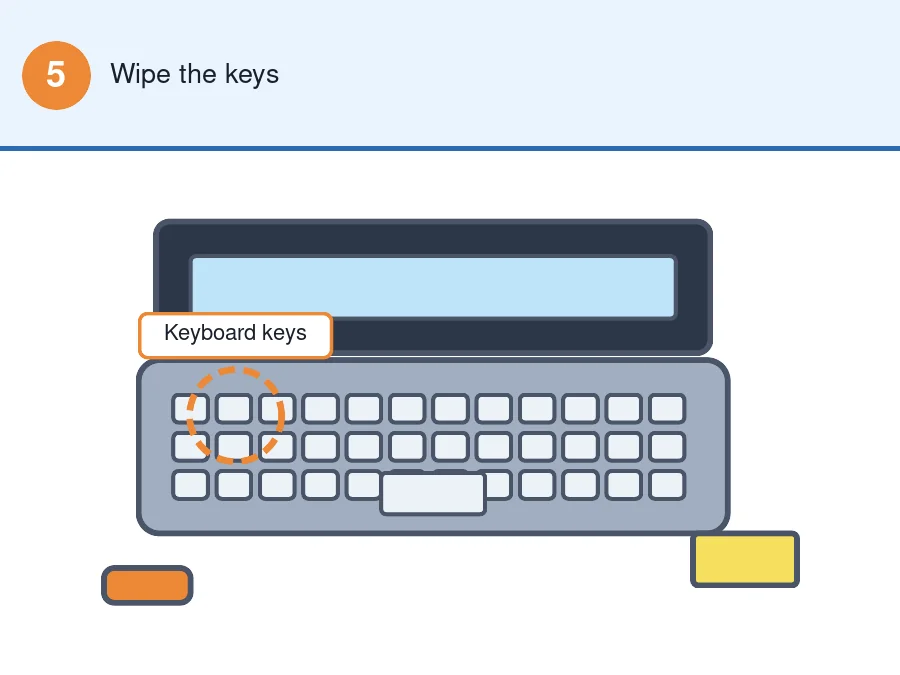
1. Dampen a microfiber cloth with distilled water or an electronics wipe.
2. Wring it out well.
3. Wipe the keys gently.
4. Use a cotton swab for edges.
6. Clean the screen
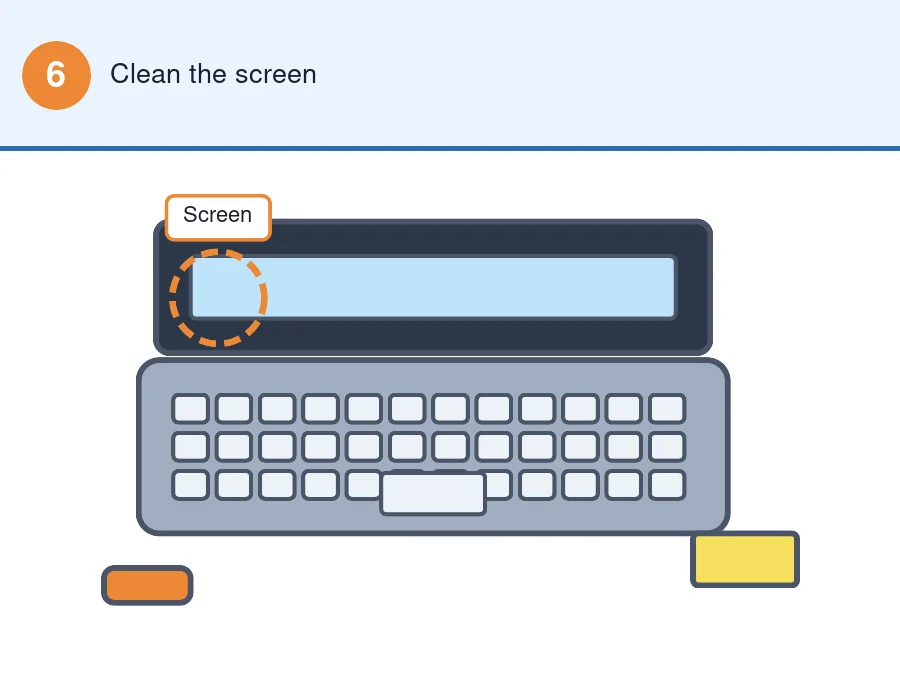
1. Dampen a clean microfiber cloth lightly with distilled water.
2. Wipe from top to bottom in light strokes.
3. Do not press on the screen.
4. Dry with a second clean cloth.
7. Clean the case and touchpad
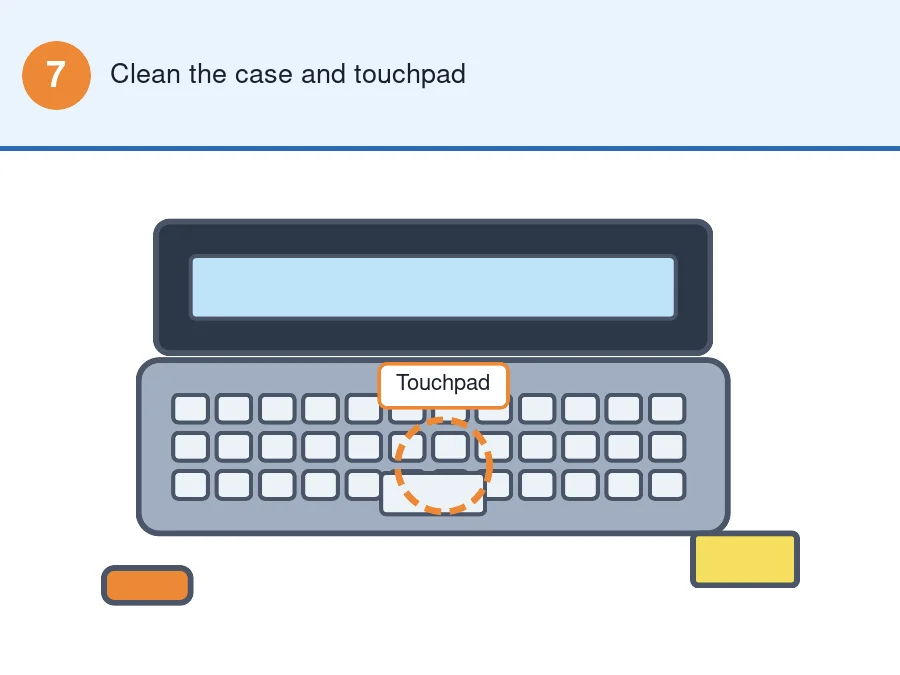
1. Wipe the palm rest and the touchpad with a slightly damp cloth.
2. Wipe the lid.
3. Avoid the ports and vents.
4. Dry the surfaces.
8. Let it dry and restart
1. Wait for everything to dry fully.
2. Plug it in.
3. Start the laptop.
4. Check that all keys work.
Quick tips
- Wash your hands before using the laptop and avoid eating over the keyboard.
- Use a keyboard cover only if it fits properly.
- Close the lid gently without anything on the keys, to avoid marks on the screen.
- Keep drinks away from the laptop.
When to stop and call a pro
If liquid is spilled on the laptop, turn it off right away, unplug it, tip it upside down and let it dry. Do not turn it on. Take it to a repair service quickly. Do not open the laptop unless you are comfortable doing so, since there are small parts and batteries inside. A swollen battery, a case that is bulging, or a hot smell means you should unplug it and stop using it. Never use a vacuum on a laptop, since static can damage it. Keep a clean microfiber cloth in the laptop bag so smudges do not spread. Avoid putting a pen, a charger or earphones between the keyboard and the screen when you close the lid, since they can leave marks or crack the display. Do not wipe a screen that is hot from use. Let it cool first, because cleaning a warm screen leaves streaks. Back up your files before any repair visit.
Related guides
- How to clean a TV screen
- How to protect electronics from power surges
- How to store batteries safely
- How to Clean Mirrors Without Streaks
- How to Clean a Lampshade Without Ruining It
Common mistakes
- Spraying liquid on the keys.
- Using household cleaners.
- Pressing hard on the screen.
- Using a vacuum.
- Turning it on while wet.
FAQ
Can I use alcohol on a laptop?
Use only wipes made for electronics, and never on a coated screen unless the maker allows it.
How often should I clean it?
Dust it weekly and do a full clean monthly.
What if a key is stuck?
Clean around it gently. If it stays stuck, ask a repair service.
Can I use compressed air?
Yes, in short bursts.
More from this topic
- How to Clean a TV Screen Without Damaging It: Learn how to clean a TV screen safely: turn it off, dust it with a microfiber cloth, use a damp cloth for...
- How to Mount a TV on the Wall Safely: Learn how to mount a TV on the wall: find the studs, choose the right bracket, mark and drill the holes,...
- How to Clean a Water Dispenser and Cooler Safely: Learn how to clean a water dispenser: unplug it, drain the tank, wash the reservoir and spigot with a mild...
- How to Clean Window Screens Without Bending or Tearing Them: Learn how to clean window screens: remove them safely, brush off dust, wash with mild soap, rinse, dry, and...
- How to Cap Electrical Wires Safely With Wire Nuts: Learn how to cap electrical wires: strip the right length, twist the wire nut on tight, and make connections...
 Electrical BasicsHow to Clean a TV Screen Without Damaging ItLearn how to clean a TV screen safely: turn it off, dust it with a microfiber cloth, use a damp cloth for smudges and avoid sprays that can damage the display.
 Electrical BasicsHow to Mount a TV on the Wall SafelyLearn how to mount a TV on the wall: find the studs, choose the right bracket, mark and drill the holes, attach the mount and hang the TV level and secure.
 KitchenHow to Clean a Water Dispenser and Cooler SafelyLearn how to clean a water dispenser: unplug it, drain the tank, wash the reservoir and spigot with a mild vinegar mix and rinse until the taste is clean.
 CleaningHow to Clean Window Screens Without Bending or Tearing ThemLearn how to clean window screens: remove them safely, brush off dust, wash with mild soap, rinse, dry, and put them back so air and light flow freely.Electrical BasicsHow to Cap Electrical Wires Safely With Wire NutsLearn how to cap electrical wires: strip the right length, twist the wire nut on tight, and make connections that stay safe in the box.